What do you want to do?
- Just read the wordsRight-click → Open with → Notepad. No installation needed.Use Notepad →
- See headings, tables, and codeOpen the file in a Markdown reader, with the original kept in place.See the reading view →
- Make double-click open the right appChoose a default app for .md files in Windows.Set the default app →
Already use VS Code? Open the file and press Ctrl+Shift+V. Preview instructions.
Want a reading app, not another editor?
Pyrus is a free, open-source Markdown reader. Install it, then open or drop one file—no account or knowledge base setup required.
## Start with the essentials

- **Headings** make a long document easier to navigate.
- Lists turn a few ideas into clear steps.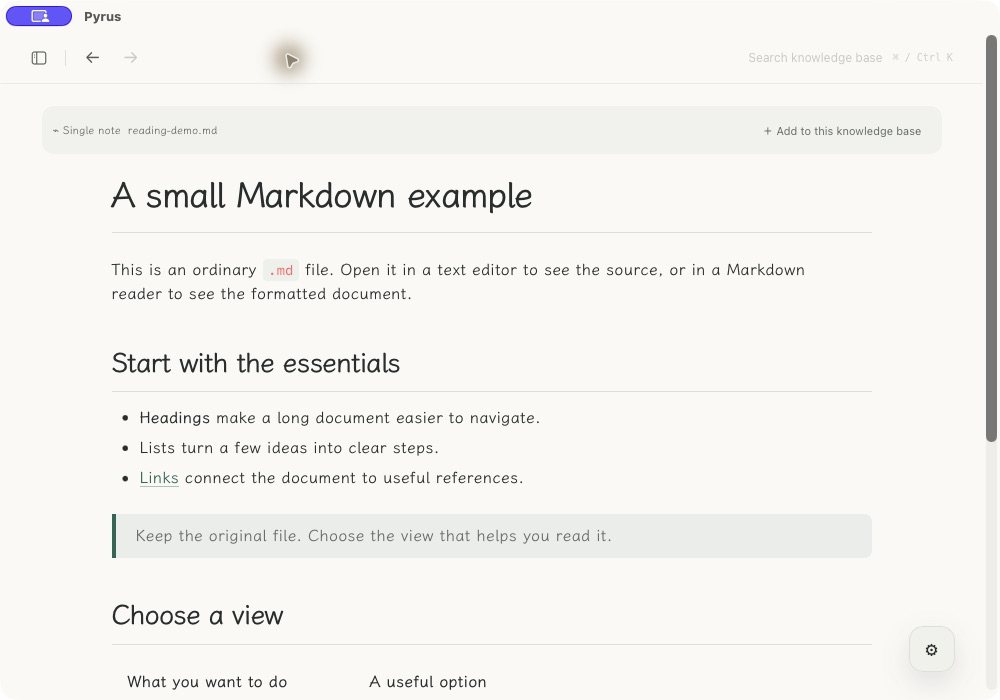
Real app screenshot, captured on macOS. Windows window controls differ. View full size.
Download Windows installer (.exe)v0.11.0 · Windows x64 (Intel / AMD) · Pyrus_0.11.0_x64-setup.exe
Other installers, platforms & release notes. Prefer no new app? The Notepad and VS Code methods below still work.
What is a .md file?
A file ending in .md contains Markdown: plain text with lightweight symbols for structure. A line beginning with # is a heading, text between double asterisks is bold, and backticks mark code.
Because it is plain text, Windows can open it with almost any text editor. The difference is whether the app shows the symbols or renders them into a readable document.
Try the same file in each app
No Markdown file handy? This small example includes headings, a list, a link, a quote, a table, and a code block. Open it with any of the methods below and compare the results.
Download the example .md fileIf your browser displays the text instead, save it as reading-demo.md, not reading-demo.md.txt.
Inspect the longer Markdown source excerpt
# A small Markdown example

This is an ordinary `.md` file. Open it in a text editor to see the source, or in a Markdown reader to see the formatted document.

## Start with the essentials

- **Headings** make a long document easier to navigate.
- Lists turn a few ideas into clear steps.
- [Links](https://www.markdownguide.org/basic-syntax/) connect the document to useful references.

> Keep the original file. Choose the view that helps you read it.
Option 1: Open it in Notepad for a quick check
- Right-click the
.mdfile. - Select Open with, then choose Notepad.
This is the fastest way to inspect or change a few words. Depending on your Windows and Notepad version, you may have some formatting support, but plain-text symbols can still be visible and advanced elements such as Mermaid diagrams or math may not render.
Best for: checking the content or making a tiny edit. Not ideal for: reading a long document.
Option 2: Use the VS Code Markdown preview
- Open the file in Visual Studio Code.
- Press Ctrl+Shift+V to open the rendered preview.
- For a side-by-side preview, press Ctrl+K, release the keys, then press V.
VS Code is excellent when you are writing Markdown, checking source, or working inside a software project. Its preview understands common Markdown and stays close to the editable file.
The trade-off is that you are still opening a development environment—with tabs, panels, commands, and editing controls—when you may only want to read.
These are the default Windows shortcuts. If you have changed your key bindings, use the Markdown: Open Preview to the Side command instead. See the official VS Code Markdown guide.
Option 3: Use an online viewer carefully
Online viewers can render a file without installing anything. They are convenient on a borrowed computer, but first check whether the page processes the file locally in your browser or uploads it to a server.
For private notes, work documents, or unpublished writing, a local app is the safer default.
Option 4: Open it in a dedicated Markdown reader
A dedicated reader is useful when the file is something to understand rather than edit: documentation, an exported AI conversation, a long technical note, a README, or an archive of saved articles.
- Download Pyrus for Windows x64 (.exe) from the official GitHub release, then install it.
- Choose Open Markdown file on the welcome screen, or drag the file onto the window.
- Read the rendered document. The original stays in its existing folder and is not copied into a proprietary library.
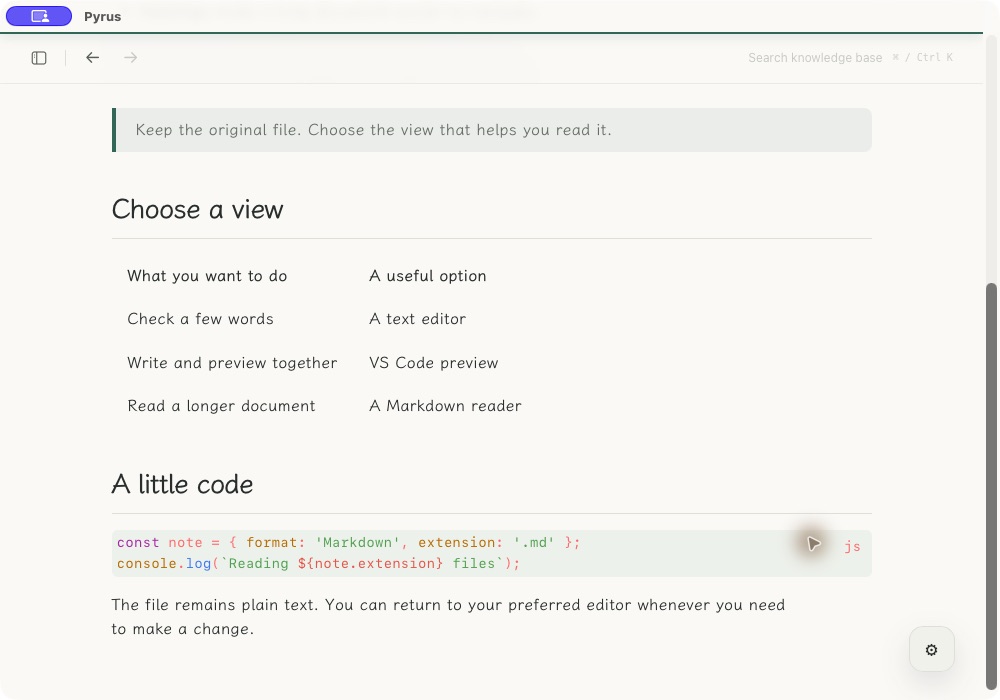
Compare the source and the real reading view above, or expand the example below to see how a table and code block look.
See the table and code block from the same file
Pyrus also remembers reading progress, provides a live outline for long documents, supports local images, and lets a useful standalone note be linked into a knowledge base later without moving the source file.
How to export Markdown to PDF on Windows
In Pyrus 0.10.0, the reading view also gives you a local route from .md to PDF. No upload to a conversion website is required.
- Open the Markdown file in Pyrus. You can use the example file above.
- Open Export in the reading toolbar and choose Export PDF / Print…, or press Ctrl+P.
- In the system print dialog, select a PDF printer such as Microsoft Print to PDF, if available.
- Check the preview, select Print, then choose the PDF filename and location.
The PDF uses a white page rather than your app theme. Wait for local images and diagrams to finish loading, and check the page breaks before saving. This exports the current document, not an entire folder. The original Markdown file stays unchanged.
If the PDF printer is missing, that is a Windows printing configuration issue rather than a Markdown format issue. You can still use the other export options below.
Copy formatted Markdown into email or a document
Choose Export → Copy as rich text, then paste into an app that accepts formatted content. Choose Copy Markdown when you want the original source for a text editor or an AI chat instead.
Paste results depend on the destination app. Math is copied as TeX source, and images or diagrams may be handled differently, so check the pasted result before sharing it.
Reading several sources? Open them in separate tabs and keep your place in each note.
Make Pyrus—or another reader—the default .md app
- Right-click any
.mdfile and select Open with. - Choose Choose another app.
- Select your Markdown reader. If it is not listed, use the option to browse for an app on your PC.
- Choose Always on Windows 11, or enable Always use this app to open .md files on Windows 10, then confirm. The wording varies by Windows version.
You can still right-click and choose VS Code or Notepad whenever you need to edit the source.
Alternatively, open Settings → Apps → Default apps, find the .md file type, and choose the app you want. Microsoft's default-app instructions cover the Settings route.
Which method should you use?
| Method | Best for | Rendered view | Stays local |
|---|---|---|---|
| Notepad | Quick inspection or tiny edits | Limited / version-dependent | Yes |
| VS Code | Writing, code projects, side-by-side preview | Yes | Yes |
| Online viewer | One-off use without installing | Yes | Depends on the service |
| Dedicated reader | Comfortable reading and returning later | Yes | Yes |
Frequently asked questions
What program opens .md files on Windows?
Notepad and code editors open the underlying text. To see a formatted document, use a Markdown-capable editor such as VS Code or a dedicated Markdown reader.
What is the best way to read or view .md files on Windows?
For a quick plain-text check, use Notepad. If you already use VS Code, press Ctrl+Shift+V for its built-in preview. To read or view formatted Markdown documents comfortably without opening a full code editor, use a dedicated local Markdown reader such as Pyrus.
Can Notepad open Markdown (.md) files with formatting?
Notepad on Windows 10 and Windows 11 can open any .md file as plain text, and newer Windows 11 Notepad versions support basic Markdown syntax. For complete rendering—including wide tables, code blocks, local images, an outline, and saved reading progress—use a Markdown viewer or dedicated reader.
Can Microsoft Word open a Markdown file?
Word can open the text, but it is not a native Markdown reader and usually will not interpret every Markdown element as intended. Converting the file also risks changing the format.
Can I read Markdown without uploading it?
Yes. Notepad, VS Code, and local readers work directly with files on your computer. No account or cloud service is required.
Why are images missing from my Markdown file?
Markdown often points to images using relative paths. Keep the image folder in the same relative location as the note, and use a reader that resolves images relative to the original file.
Can I convert a .md file to PDF without uploading it?
Yes. Open it in Pyrus 0.10.0 or later, choose Export → Export PDF / Print, and use a PDF printer in the Windows print dialog. This creates a separate PDF without changing the original Markdown file.
Are .md files safe?
A Markdown file is plain text, but links and embedded HTML can still point elsewhere. Treat files from unknown sources with the same care as any downloaded document.
Want the file to feel like a document?
Pyrus is a free, open-source Markdown reader for Windows, macOS, and Linux. Open one file without setup, keep it where it is, and turn a folder into a reading space only when you need one.
Download Windows installer (.exe) — free